
Every teacher knows that a well‑crafted slide can turn a routine lesson into an unforgettable learning experience. Yet many educators feel overwhelmed by the endless design options and technical features in PowerPoint. This guide distills the most effective PowerPoint tips for teachers, helping you create clear, engaging, and interactive presentations without spending hours on design.
Start with a Clear Lesson Objective

Before opening PowerPoint, define the exact learning outcome you want students to achieve. A concise objective guides the content you include, ensuring each slide serves a purpose rather than adding fluff. Write the objective on a sticky note and place it where you can see it while designing – this keeps the focus sharp and prevents scope creep.
When the objective is visible, you can align visuals, text, and activities directly to it. This alignment not only streamlines your slide deck but also makes it easier for students to follow the logical flow, reinforcing the lesson’s main point at every step.
Design Clean Slides with Consistent Layouts
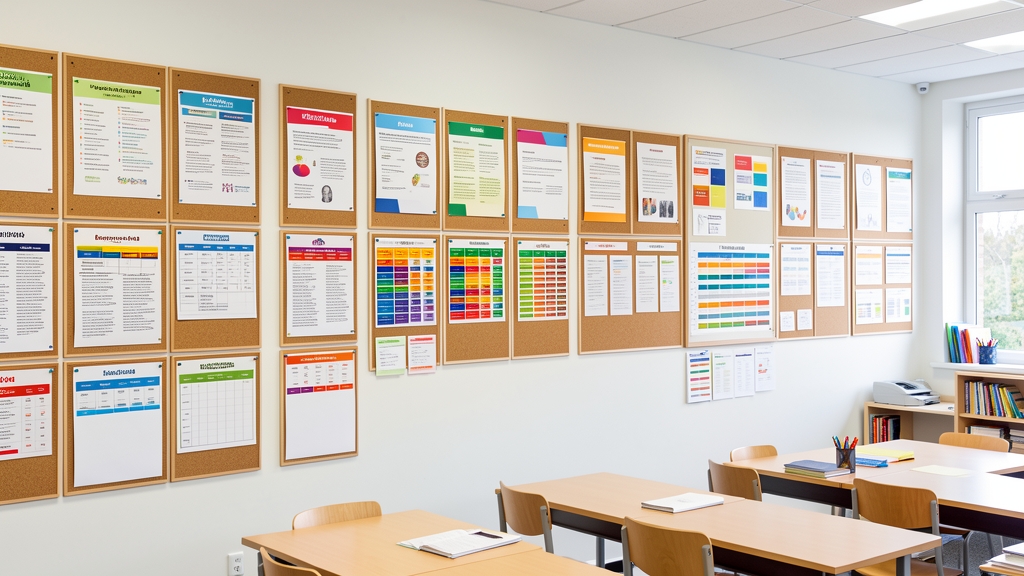
Cluttered slides distract learners and dilute your message. Adopt a simple grid system: limit each slide to one main idea, use ample white space, and keep fonts uniform. Choose a readable sans‑serif typeface for headings and a slightly smaller size for body text, and stick to a maximum of two complementary colors.
Consistency builds familiarity, allowing students to focus on content rather than adjusting to new designs each slide. Save your preferred layout as a custom slide master so you can apply the same look across the entire deck with a single click.
Use Visuals That Support Learning

Images, diagrams, and charts are far more memorable than blocks of text. Select visuals that directly illustrate the concept you’re teaching – a historical photograph for a timeline, a labeled diagram for a biology process, or a simple graph to show data trends. Avoid decorative clip art that adds noise without educational value.
When incorporating visuals, keep them high‑resolution and properly sized to avoid pixelation on the projector. Pair each image with a brief caption that explains its relevance, reinforcing the connection between the visual and the lesson objective.
Incorporate Interactive Elements

Interactive slides keep students actively involved, turning passive viewing into participation. Use built‑in PowerPoint tools like polls, quizzes, and trigger animations to reveal answers after students discuss. Simple click‑to‑reveal bullet points encourage note‑taking and prevent information overload.
Plan brief activities every 5‑7 minutes: pose a question, let students discuss, then reveal the answer on the next slide. This pacing maintains attention, reinforces retention, and makes the lesson feel dynamic rather than a lecture.
Leverage Slide Master for Efficiency

Slide Master is a hidden powerhouse that saves time and ensures uniformity. Set up your title slide, content layout, and footer once, then apply them to all new slides. Include placeholders for logos, page numbers, and any recurring graphics, so you never have to recreate them manually.
When you need to update the design – perhaps changing the school’s color palette – modify the master slide and watch the change ripple through the entire presentation instantly. This approach reduces errors and lets you focus on refining content.
Add Accessibility Features
Inclusive design ensures every student can access your material. Use high‑contrast color combinations, avoid relying solely on color to convey meaning, and add alt text to images for screen readers. PowerPoint’s built‑in accessibility checker can highlight issues before you present.
Provide captions for any embedded video and use readable font sizes (at least 24 pt for headings). These small adjustments broaden comprehension and demonstrate a commitment to equitable learning environments.
Manage Timing and Pacing
Effective presentations respect the classroom’s rhythm. Use the “Rehearse Timings” feature to gauge how long each slide takes, adjusting content to fit your lesson’s allotted time. Overly long slides can cause disengagement, while rushed pacing leaves gaps in understanding.
Consider breaking dense information into a series of shorter slides rather than a single crowded one. This allows you to pause for questions, check for understanding, and keep the energy steady throughout the class.
Save and Share for Future Use
Once your deck is polished, save it in multiple formats: the native PowerPoint file for future edits, a PDF for easy printing, and a video version for flipped‑classroom assignments. Organize files in a clearly labeled folder structure – by grade, subject, and unit – so you can retrieve them quickly next semester.
Sharing your slides with colleagues via a shared drive or learning management system encourages collaboration and resource reuse. A well‑documented slide library becomes a valuable teaching asset, reducing preparation time year after year.
Ready to transform your classroom slides into powerful teaching tools? Try these tips today and see the difference in student engagement. And when you need a fast, polished look, let DesignStager’s AI‑powered templates do the heavy lifting – so you can focus on what matters most: teaching.